How to Create an Instagram Business Account and Connect It to a Facebook Page
A professional Instagram account unlocks features personal accounts lack: contact buttons, insights, ads and DM integration with business tools. Learn how to switch to a business account, choose between business and creator, build a convincing profile and connect it to a Facebook Page.

Antonio Kurniawan
Product & Customer Success

On this page
- Personal, business or creator?
- Steps to switch to a business account
- Building a convincing profile
- Connecting the account to a Facebook Page
- Allowing message access for third-party tools
- Features unlocked by a business account
- Keeping your business account secure
- Setting up your first feed after switching
- Building good DM habits from day one
- Building trust with social proof
- Example: a florist in Surabaya
- Common mistakes
- Summary
Key takeaways
- A personal account can be switched to a professional account (business or creator) for free in Instagram settings.
- Business accounts suit shops and brands; creator accounts suit public figures and content creators.
- Professional accounts unlock contact buttons, insights, ads and DM integration with third-party tools.
- Connect the account to a Facebook Page so DMs can be managed in Meta Business Suite or a shared inbox and ads can run.
- A convincing profile answers three questions: who you are, what you sell and how to order.
The easiest way to create an Instagram business account is to switch an existing account to a professional one: open your profile, go to Settings and privacy, choose Account type and tools, then Switch to professional account. Pick a business category, choose business or creator and complete your contact details. The switch is free and keeps your followers and posts. Then connect the account to a Facebook Page so DMs can be managed in Meta Business Suite or a shared inbox, full insights become available and ads can run.
This guide covers the difference between business and creator accounts, the switching steps, how to fill in a profile that makes people comfortable sending a DM, and how to connect the account to a Facebook Page and messaging platforms.
Personal, business or creator?
Instagram has three account types. Choosing the right one from the start makes management much easier.
For most businesses, a business account is the right choice, especially if you plan to use third-party tools to manage DMs or want clear contact buttons on your profile. Creator accounts suit people building a personal brand as content creators.
Steps to switch to a business account
Open the Instagram app and go to your profile.
Tap the menu at the top right, then choose Settings and privacy.
Choose Account type and tools, then Switch to professional account.
Pick the category that best describes your business, such as Clothing Store, Beauty Salon or Restaurant. You can choose whether to show the category on your profile.
Choose Business as the account type.
Complete your contact details: email, phone number and address if you have a physical store.
Connect to a Facebook Page when prompted, or skip and connect later from settings.
After switching, your profile shows contact buttons and you can start seeing insights for content posted from then on.
Building a convincing profile
Your profile is your shop front on Instagram. Visitors decide within seconds whether to follow, send a DM or leave.
Name and username. Use the brand name customers know and the same username as on other platforms. The name field is searchable, so adding a short keyword such as "Instant Hijab" next to the brand name can help people find you.
Profile photo. A logo on a plain background that stays clear at small sizes.
Bio. Answer three questions: who you are, what you sell and how to order. For example: "Handmade leather shoes from Bandung. 1-year stitching warranty. Order by DM or tap the link below."
Link. Point to where sales happen: your website, catalog or a WhatsApp link with a pre-filled message. See WhatsApp link and QR code for business.
Contact buttons. Turn on the buttons that fit best, such as message, email, call or action buttons like order food or book, if available for your category.
Highlights. Create Stories highlights for Reviews, How to Order, Catalog and FAQ. Serious visitors almost always open them before asking.
Connecting the account to a Facebook Page
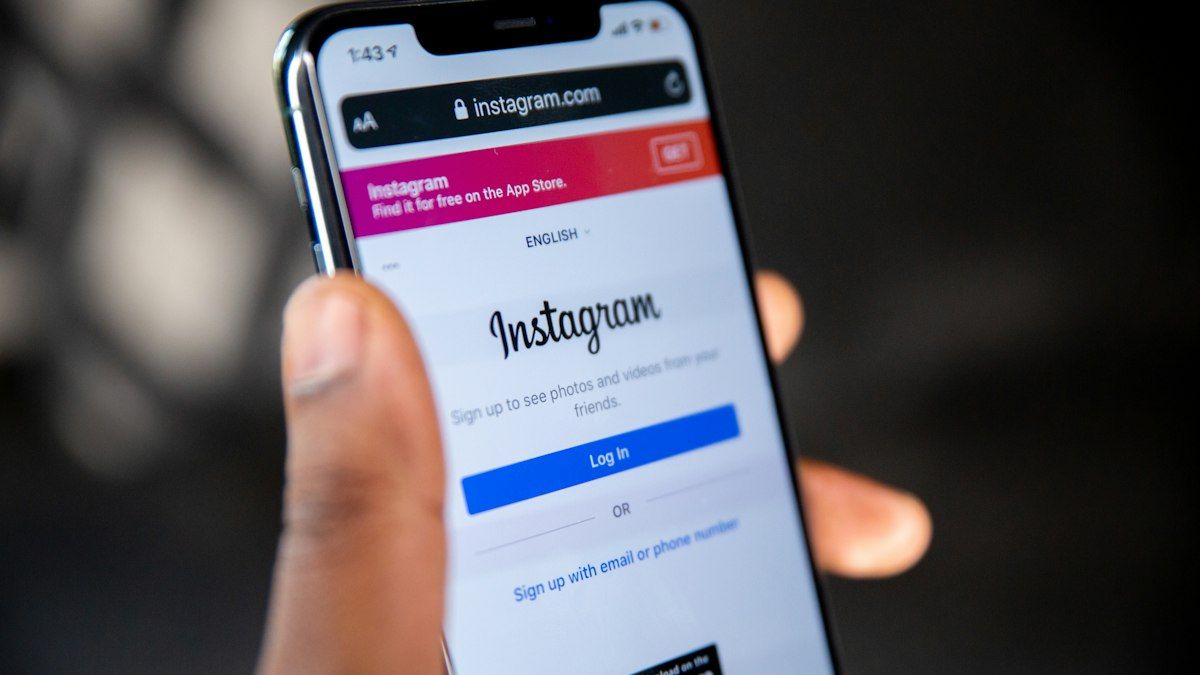
A Facebook Page connection unlocks many benefits. Instagram DMs can be managed alongside Messenger in Meta Business Suite. Ads can run on Instagram and Facebook together. Third-party platforms that manage DMs also require this connection.
To connect: in the Instagram app, open the business account settings and choose the option to connect a Facebook Page, then sign in with a Facebook account that is an admin of that Page. You can also do it from Meta Business Suite under linked accounts. If you do not have a Page yet, follow how to create a Facebook business Page.
Allowing message access for third-party tools
For Instagram DMs to reach a shared inbox or automation platform, Instagram needs to allow access to messages. In Instagram's message settings, make sure the option that allows access to messages for connected tools is turned on. Without it, third-party platforms cannot read or reply to DMs even when the account is connected.
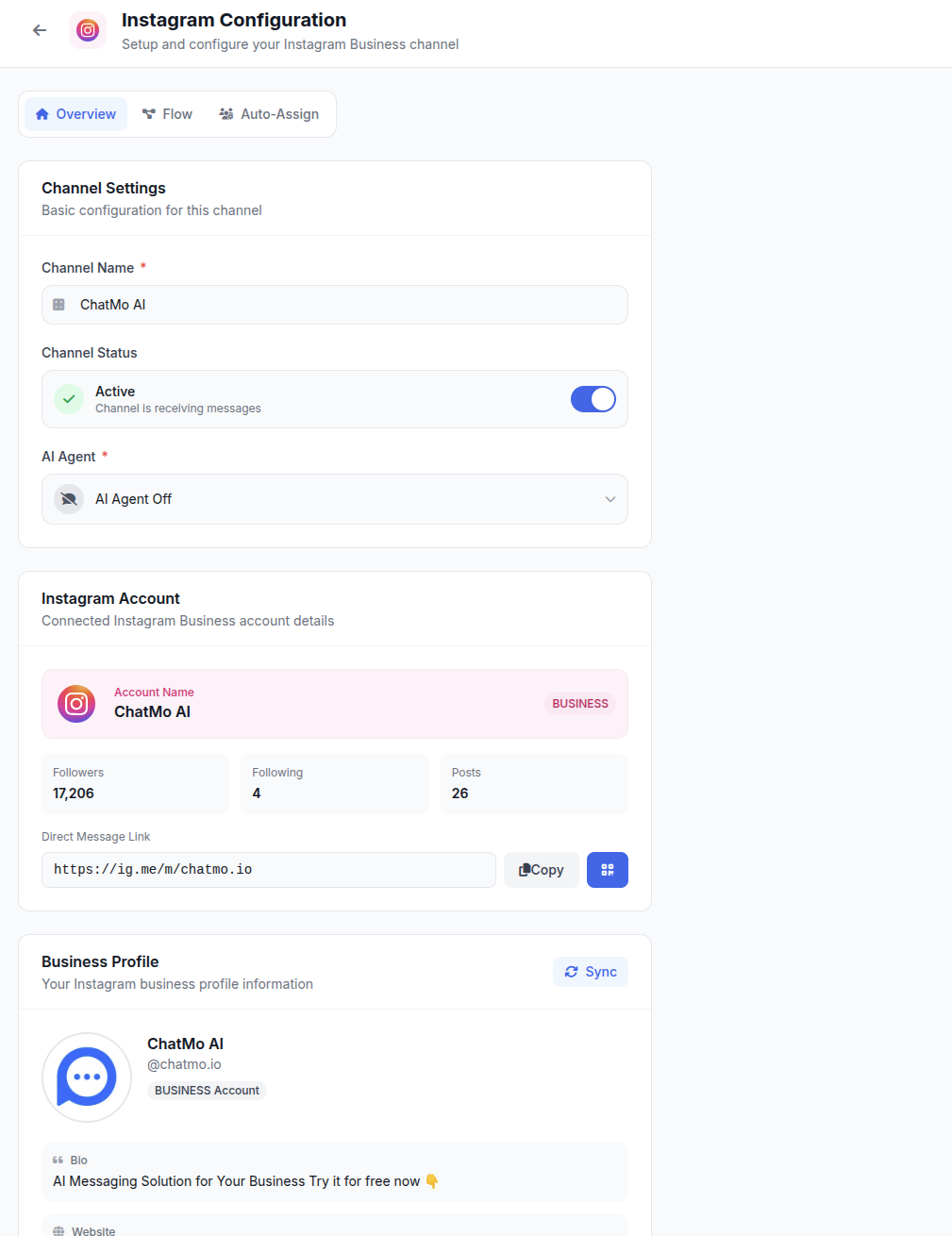
In ChatMo, a professional Instagram account connected to a Facebook Page joins the same inbox as WhatsApp, Facebook, Telegram and webchat. DMs can be assigned automatically, labelled, answered with quick replies and handled by an AI agent after hours.
Features unlocked by a business account
Switching to a business account is more than a label change. A few features you can use right away:
Insights. See reach, engagement and follower profiles for each piece of content. The full guide is in how to read Instagram Insights.
Ads. Boost posts or create ads that lead to DMs, your website or WhatsApp.
Saved replies and FAQs. Save answers to common questions and show starter questions when people open a DM.
Message folders. DMs are split into primary and general folders, so important customer messages are not buried.
Broadcast channels. Eligible professional accounts can create broadcast channels to send updates to followers. See Instagram broadcast channels for business.
Keeping your business account secure
A hacked Instagram business account can damage your reputation and stop sales. Turn on two-factor authentication with an authenticator app, not just SMS. Use a secure business email as the account email. Never give your login code to anyone, including people claiming to be from Instagram or an agency. If several people manage the account, grant access through Meta Business Suite instead of sharing the password, so access can be removed at any time.
Also watch for messages claiming to be from Instagram saying your account broke copyright rules or will be deleted. Instagram does not DM users asking for passwords or codes.
Setting up your first feed after switching
Visitors who open your profile from an ad, a comment or a friend's recommendation see the top nine to twelve posts. This section works like a shop window. If it is random, for example personal holiday photos mixed with product shots, visitors struggle to understand what you sell. After switching to a business account, take time to tidy the top of your feed.
Pin your three best posts at the top of the profile, for example one introducing the brand, one customer testimonial and one guide on how to order. Archive old posts that are not relevant to the business instead of deleting them, so you can restore them if needed. Use a consistent visual style, such as a dominant color or the same photo style, so your feed is easy to recognise.
Building good DM habits from day one
A newly active business account often receives DMs right away, especially if it already has followers. Build good reply habits from the start. Check the primary and general message folders every few hours, because messages from people you do not follow can land in message requests and are easy to miss. Save replies for the most common questions, such as price, how to order and delivery areas.
When DMs grow, state clear service hours in your bio or highlights, for example "Team online 8 am to 9 pm". Customers are far more patient when they know when to expect a reply. Outside those hours, an automatic reply or AI agent can keep customers served until the team is back.
Building trust with social proof
Prospects on Instagram often look for proof that your business is real and has served others well. Collect customer testimonials as chat screenshots, photos customers send of their purchases or short videos, with permission of course. Keep them in a Reviews highlight and update it regularly. Invite customers to tag your account when they share your product in Stories, then reshare those Stories. Proof from real customers is far more convincing than claims you write yourself.
Example: a florist in Surabaya
A florist in Surabaya sold through a personal Instagram account for two years. She could not see which content brought the most orders, and order DMs were mixed with messages from friends and family.
After switching to a business account in the Florist category, she filled the bio with delivery areas and how to order, added a WhatsApp link with a pre-filled message and created Bouquet Catalog and Reviews highlights. The account was connected to a Facebook Page so DMs could be handled in a shared inbox by one extra agent during graduation season and Valentine's Day. From insights, she found that short videos of bouquets being arranged brought far more DMs than photos of finished bouquets, so she made more of them.
Common mistakes
Selling from a personal account. No insights, contact buttons or DM integrations.
A bio that does not explain how to order. Visitors are interested but do not know what to do next.
Not connecting a Facebook Page. Many ad features and message integrations are unavailable.
Forgetting to allow message access. Third-party platforms cannot read DMs even when connected.
Sharing the password with many people. A high security risk and hard to revoke.
Summary
Switch to a professional account in Settings and privacy and choose Business for shops and brands.
Fill in a profile that explains who you are, what you sell and how to order.
Connect the account to a Facebook Page and allow message access for connected tools.
Use insights, ads, saved replies and highlights.
Protect the account with two-factor authentication and controlled team access.
Frequently asked questions
How do I switch an Instagram account to a business account?
Open your profile, go to Settings and privacy, choose Account type and tools, then switch to a professional account. Pick a category, choose business or creator and complete your contact details.
Does an Instagram business account cost money?
No. Switching to a professional account is free. Costs only come from ads or certain paid features.
What is the difference between business and creator accounts?
Business accounts are for shops, brands and service providers, with features such as contact buttons and business tool integrations. Creator accounts are for public figures and content creators, with features such as more detailed follower growth insights.
Does an Instagram business account need a Facebook Page?
It is not required just to use professional features, but it is strongly recommended. A Facebook Page connection is needed for many ad features, Meta Business Suite and DM integrations with platforms such as ChatMo.
Will I lose followers when switching to a business account?
No. Your followers, posts and account history stay the same. Only the available features and profile layout change.
About the author
Antonio Kurniawan
Product & Customer Success
The ChatMo product and customer success team helps Indonesian businesses run WhatsApp, Instagram and webchat conversations with AI agents and shared inboxes.