How to Create a Facebook Business Page That Buyers Trust and That Is Ready for Chats
A Facebook Page is your business's official identity on Facebook and the entry point to Messenger. Learn how to create a Page from scratch, the details you must fill in, how to connect it to Instagram and WhatsApp, and the settings that make prospects comfortable sending a message.

Antonio Kurniawan
Product & Customer Success

On this page
- Why businesses still need a Facebook Page
- Steps to create a Facebook Page
- Details that make a Page look trustworthy
- Setting up the Send Message button and Messenger
- Connecting your Page to Instagram and WhatsApp
- Managing admins safely
- Content worth posting on a business Page
- Using Page insights
- Protecting your Page's reputation in comments and reviews
- Example: a family photo studio
- Common mistakes
- Summary
Key takeaways
- A Facebook Page is created from a personal Facebook account but appears as a separate business identity.
- Fill in the category, profile photo, cover, description, hours, address, phone number and website so the Page looks trustworthy.
- Set the main action button to Send Message and create a username so the Page has an easy-to-share m.me link.
- Connect the Page to Instagram and WhatsApp to make managing messages and ads easier.
- Add admins through your Business Portfolio with role-based access; never share a personal account password.
Creating a Facebook business Page is simple: log in to Facebook, open Pages, choose Create new Page, enter the business name, category and description, then add a profile photo and cover. What separates a Page that brings in chats from a quiet one is what comes next: complete contact details, Send Message as the main action, a memorable username, connections to Instagram and WhatsApp, and tidy admin access. Prospects judge your credibility from your Page within seconds, especially when they arrive from an ad or Marketplace.
This guide covers how to create a Page, how to fill it in so it looks trustworthy, the settings that make it easy for prospects to contact you, and how to manage it as a team.
Why businesses still need a Facebook Page
Even though many sales happen on WhatsApp and Instagram, a Facebook Page still matters. A Page is required to run Meta ads, including ads that lead to WhatsApp and Instagram. It is also home to business Messenger, where people who find you on Facebook can ask questions directly. On top of that, your Page often appears in Google results when people search your business name, making it one of the first places prospects check whether your business is real.
An empty or neglected Page can actually hurt. Prospects who find a Page whose last post was two years ago and that has no contact details tend to hesitate, even if your products are good.
Steps to create a Facebook Page
Log in to your personal Facebook account. Pages are always created from a personal account, but your name is not shown publicly as the manager.
Open Pages and choose Create new Page.
Enter the Page name that customers know your business by. Avoid adding promotional words such as "cheap" or "cheapest".
Choose the most fitting category, such as Clothing Store, Beauty Clinic or Education Service. The category helps Facebook show your Page to the right people.
Write a short description: what you sell, who it is for and where.
Upload a profile photo and a cover photo. Use your logo for the profile photo and a product or store image for the cover.
Complete your contact details: phone number, email, website, address and opening hours.
Set the action button to Send Message.
Create a username so the Page gets an address such as facebook.com/yourbusiness and the link m.me/yourbusiness.
Details that make a Page look trustworthy
Prospects look for signs that your business is real and responsive. The elements that matter most:
A clear profile photo. A logo on a plain background that stays readable at small sizes. The profile photo appears next to every comment and message, so make it recognisable.
A cover that shows products or the business itself. Photos of your store, team or best-selling product are more convincing than generic stock images.
A specific description. "Custom teak furniture from Jepara, delivered across Java and Bali" is far stronger than "Selling quality furniture".
Address and opening hours. A business with a physical address and clear hours feels more trustworthy, even if most sales happen online.
Regular posts. Not necessarily daily. Two or three posts a week shows the business is active.
Reviews and recommendations. Turn on reviews where available and ask happy customers to recommend you.
Setting up the Send Message button and Messenger
The main action button is the large button below the cover photo. For businesses that sell through conversations, choose Send Message. Page visitors simply tap it to open a chat.
Once the button is active, set up basic automatic messages in Meta Business Suite, at least an instant reply for first chats and an away message for after hours. The full guide is in how to set up Facebook Messenger auto-replies.
The username matters too. It sets the m.me link you can put on your website, business cards, packaging or Instagram bio. Choose a short username that matches your brand on other platforms and is easy to say.

Connecting your Page to Instagram and WhatsApp
Connecting your Page to a professional Instagram account and a business WhatsApp number makes management much easier. With Instagram connected, Instagram DMs and Messenger messages can be handled in one place in Meta Business Suite, and ads can run on both platforms at once. With WhatsApp connected, you can add a WhatsApp button to the Page and run Click to WhatsApp ads.
You make these connections from the Page settings or Meta Business Suite, in the linked accounts section. For Instagram, the account must be professional (business or creator). The guide to setting one up is in how to create an Instagram business account.
Managing admins safely
A common mistake is sharing the owner's personal Facebook password with employees so they can manage the Page. Besides the risk, you cannot tell who did what, and it is hard to remove access when someone leaves.
The right way is to add each person with their own Facebook account, through the Page access settings or your Business Portfolio in Meta Business Suite. Give roles based on tasks: message agents only need inbox access, while the ads team needs access to the ad account. Always keep more than one owner with full access so the Page is not locked if one account runs into trouble.
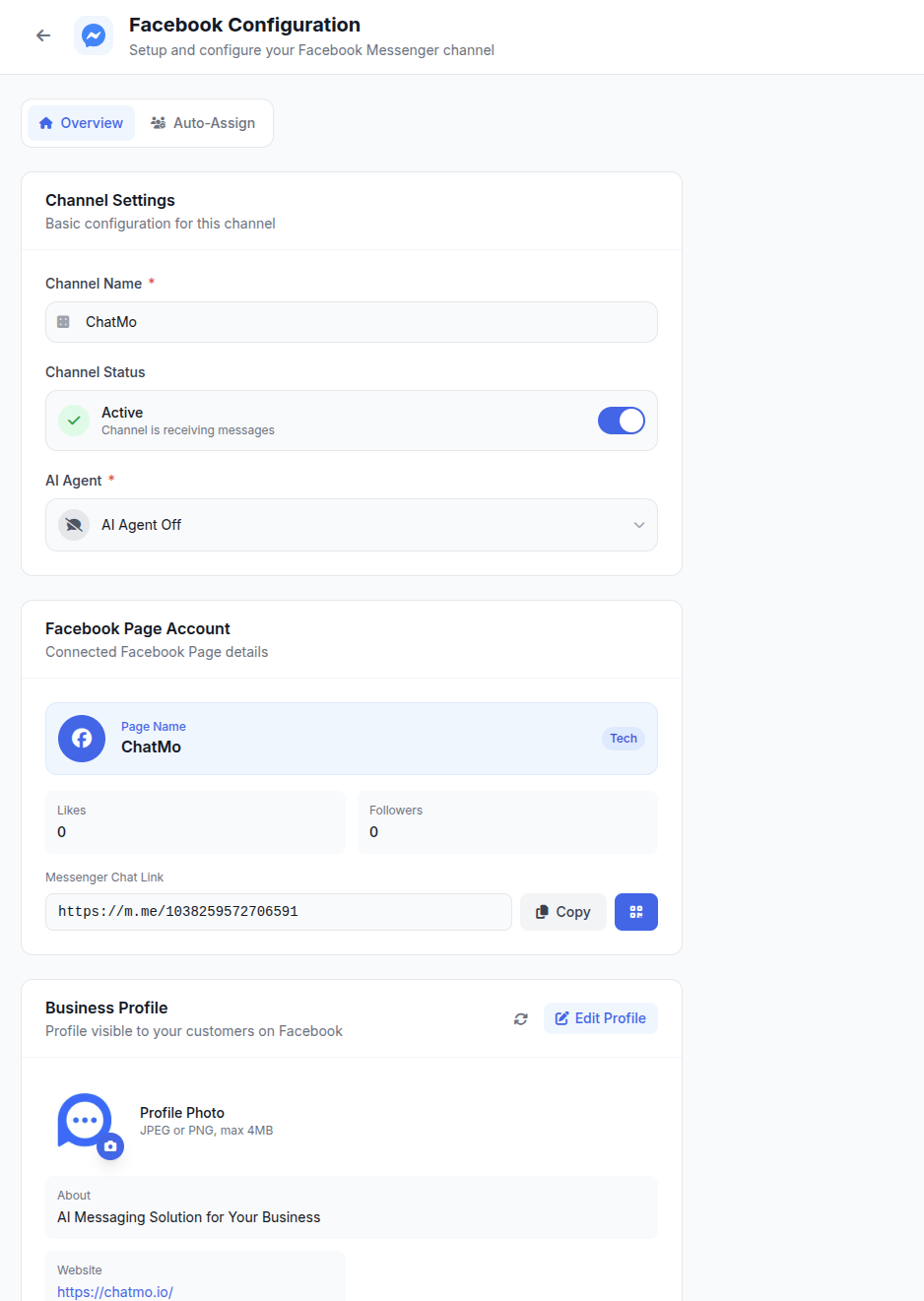
When chat volume grows and messages also come from WhatsApp and Instagram, consider a shared inbox. In ChatMo, your Facebook Page connects through Meta login, and Messenger messages land in the same inbox as other channels, with automatic chat assignment and per-agent reports.
Content worth posting on a business Page
An active Page builds trust and gives you material for ads. A few effective content types:
Products in real contexts, such as furniture in a customer's home or food being served. Behind-the-scenes content such as production or the team packing orders. Customer testimonials as photos or chat screenshots, with permission of course. Answers to questions that keep coming up in chats, such as how to care for a product or how variants differ. Practical announcements such as holiday hours, offers or restocks.
End every post with a clear call to action, such as "Message us to check your size" or "Tap Send Message for a free consultation".
Using Page insights
A Facebook Page offers insights that help you understand visitors. See how many people view the Page, which posts reach the most people and where visitors come from. For chat-based businesses, the most relevant numbers are new messages and response time. If visits are high but messages are few, the action button may be unclear or the description unconvincing. If messages are many but response time is slow, it is time to add agents or set up automatic replies.
Review these insights once a month. Compare which post types drive messages and create more content like them. Insights also help you pick posting times, because you can see when followers are most active.
Protecting your Page's reputation in comments and reviews
Prospects read comments and reviews on your Page as social proof. Reply to questions in comments quickly and kindly, then move price details to a private message. For negative comments, do not delete them or reply defensively. Acknowledge the issue, apologise if there was a mistake and invite the customer to continue by message so it can be resolved. Prospects who see complaints handled well often trust you more.
Also watch for spam or scam comments impersonating your business, such as fake accounts asking for transfers. Hide those comments, report the accounts and post a reminder about your official channels.
Example: a family photo studio
A family photo studio in Malang had a Page with 3,000 followers but almost never received messages. Looking closer, the Page had no Send Message button, empty opening hours and a last post more than a year old.
They tidied the Page in one afternoon: the profile photo became a clear logo, the cover showed a sample family portrait, the description listed packages and service areas, the action button changed to Send Message and the username was set to match their Instagram account. They also began posting two sample photos a week with the prompt "Message us to check available dates this month". Within a month, the Page was receiving messages regularly, mostly from people who found the studio through Google search and local community groups.
Common mistakes
Using a personal profile as a shop. Personal profiles lack business features and can be restricted when used for selling.
Empty contact details. Prospects do not know how to reach you except through comments.
Sharing a personal password with employees. Risky and hard to control.
Not connecting the Page to Instagram. Messages must be handled in two places and many ad features are unavailable.
An old last post. Prospects assume the business has closed.
Summary
Create the Page from Pages with a clear name, category and description.
Complete photos, contact details, address and hours so the Page looks trustworthy.
Set the Send Message button and create a username for your m.me link.
Connect the Page to Instagram and WhatsApp.
Add admins with their own accounts and the right roles.
Frequently asked questions
How do I create a Facebook Page for my business?
Log in to Facebook, open Pages, choose Create new Page, enter the business name, category and description, then add a profile photo and cover. After that, complete your contact details and set the action button.
Is creating a Facebook Page free?
Yes. Creating and managing a Facebook Page is free. Costs only come from ads.
What is the difference between a Facebook Page and a personal account?
A personal account represents an individual, while a Page represents a business or brand. A Page can have many admins, receive business Messenger messages, run ads and view insights.
How do I add admins to a Facebook Page?
Add people through the Page access settings or through your Business Portfolio in Meta Business Suite, then give them roles that match their tasks, such as messages only or ads as well.
Should a Facebook Page be connected to Instagram?
Strongly recommended. Connecting the Page to a professional Instagram account makes managing messages in Meta Business Suite easier and is required for many ad features and DM integrations.
About the author
Antonio Kurniawan
Product & Customer Success
The ChatMo product and customer success team helps Indonesian businesses run WhatsApp, Instagram and webchat conversations with AI agents and shared inboxes.