WhatsApp Interactive Messages: How to Use Reply Buttons, List Menus and Link Buttons
Interactive messages let customers tap an option instead of typing. Learn the button and list types on the WhatsApp Business API, their character limits, when you must use a template, and ready-made flows for online stores, clinics and courses.

Antonio Kurniawan
Product & Customer Success
On this page
- Types of interactive messages and their limits
- The 24-hour rule: interactive messages vs templates
- Why buttons beat free text
- Example interactive flows by industry
- How to write clear buttons
- A full example: a skincare store flow
- Headers, footers and emoji: small details that matter
- When not to use buttons
- Connecting buttons to automation
- Measuring your interactive messages
- Common mistakes
- Interactive messages and AI agents
- Summary
Key takeaways
- Interactive messages are available on the WhatsApp Business API, not on the WhatsApp Business app.
- Reply buttons allow up to 3 options, list menus up to 10 rows, and a link button opens one URL.
- Interactive messages can be sent freely within the 24-hour service window; outside it, use a template with buttons.
- The option a customer taps can trigger an automated flow, a label or a handoff to the right team.
- Always offer a way to reach a person so customers never get stuck in a menu.
WhatsApp interactive messages are messages with buttons or a list of options that customers can tap, so they do not have to type an answer. Businesses mostly use three types: reply buttons (up to 3 options), list menus (up to 10 rows) and a link button that opens one URL. They are only available on the WhatsApp Business API and can be sent freely during the 24-hour service window that starts with the customer's last message. Outside that window, use a Meta-approved template with buttons.
Why does this matter? Every time a customer has to type, there is a chance they mistype, answer something else or simply stop replying. Buttons make the conversation faster and the data cleaner to work with.
Types of interactive messages and their limits
Interactive messages can also carry a header (text, image, video or document) and a short footer. The body can be up to 1,024 characters, but effective messages are usually much shorter: one or two sentences that explain what to choose.
Beyond these three, Meta also offers WhatsApp Flows for multi-step forms inside the chat, location requests and product catalog messages. For most businesses, reply buttons and list menus cover 80% of what they need.
The 24-hour rule: interactive messages vs templates
This is the part that confuses people most. The WhatsApp Business API separates two situations:
Inside the 24-hour service window (the customer has just messaged you), you can send any interactive message without approval.
Outside that window, the only way to start a conversation is an approved template. Templates can also carry buttons: quick reply, link, phone call or copy code buttons.
So a flow started by the customer, for example someone typing "Hi" from an ad, can use buttons and lists freely. Reminders, promotional broadcasts or a follow-up a few days later must use templates. Examples of templates with buttons are in WhatsApp Business message template examples.
Why buttons beat free text
Compare these two welcome messages.
Hi, thanks for contacting Smile Dental Clinic. Type 1 for doctor schedules, 2 for treatment prices, 3 for branch locations or 4 to talk to our team.
The interactive version needs one sentence and a list menu with four options to tap. The difference usually shows in three ways:
More customers respond. Tapping is much easier than typing, especially on a phone while doing something else.
Answers are always valid. No more "one", "1." or "the first one please" that someone has to interpret.
The data is usable right away. The customer's choice can become a label, trigger the next step or decide which team gets the chat.
Example interactive flows by industry
Online store
A welcome message with reply buttons: Browse Products, Order Status, Talk to Us. If the customer picks Browse Products, send a list menu of categories (Tops, Bottoms, Dresses, Accessories). After they pick a category, send a link button to that category in your catalog. Order Status asks for the order number, and Talk to Us goes straight to the sales team.
Clinic or salon
A list menu of services: Consultation, Facial, Scaling, Tooth Extraction and so on. After the customer picks a service, send reply buttons to choose a branch. Finally, send a link button to the booking page or ask the customer for their preferred date.
Courses and education
Reply buttons for the level: Primary, Junior High, Senior High. Then a list menu of programs for that level. Customers who choose a program get a label for it, so the sales team knows what the prospect wants before the conversation even starts.
Confirmations and quick surveys
After an order ships, use a template with quick reply buttons: Received and There's a Problem. The second option opens a conversation with the after-sales team. When a chat is resolved, send reply buttons with three satisfaction options: Great, Okay, Not Happy.
How to write clear buttons
The 20-character limit forces you to be brief. A few guidelines:
Use a clear verb or noun. "Check Shipping" is clearer than "Info".
Avoid overlapping options. "Promo" and "Discounts" leave customers unsure which to pick.
Order options by popularity. Look at your chat data: which questions come up most?
Always offer a way out. A "Talk to Us" or "Something Else" button stops customers from feeling trapped.
Keep it under three steps. If customers must tap five times before getting an answer, most will drop off halfway.
A full example: a skincare store flow
To make this concrete, here is a full flow for a skincare store that receives chats from Instagram and TikTok ads. Notice that every message is short and every step has one clear purpose.
Step 1, welcome. The customer types "Hi, I have a question about your products". The business replies: "Hi, welcome to Glowly. What can we help you with today?" with the buttons Find a Product, Check My Order and Ask Our Team.
Step 2, sorting the need. If the customer taps Find a Product, send a list menu titled "Your skin concern" with rows: Oily Skin, Dry Skin, Acne, Dull Skin, Sensitive Skin. Each row gets a short description, such as "Large pores, gets shiny quickly".
Step 3, recommendation. The choice adds a label for the skin type, and the business sends three recommended products in one message with an image header and a link button to the product bundle page.
Step 4, handoff. The next message has the buttons Order Now and Not Sure Yet. Order Now goes straight to a sales agent with the label "Ready to Buy". Not Sure Yet goes to an AI agent that answers questions about ingredients, how to use the products and what results to expect.
With this flow, agents only receive chats where the need is already clear. They no longer spend time asking for the skin type one customer at a time, and customers get a recommendation in under a minute.
Headers, footers and emoji: small details that matter
A few presentation details are often overlooked even though they affect tap rates:
An image header makes the message stand out in the chat. Use a product photo with a clean background and little text, because it shows small on a phone.
The footer is good for supporting information such as "Reply any time, our team is online 8 am to 9 pm". Do not fill it with extra promotions.
Emoji in buttons are fine in moderation, for example one at the start of a button. Too many make buttons hard to read and eat into the 20-character limit.
Consistent tone. If your greeting is casual, keep the same tone across every button and follow-up message.
When not to use buttons
Buttons are not the answer to every situation. Sometimes plain text works better:
The customer is complaining. Upset people want to be heard, not handed a menu. Pass the chat to an agent and let them explain.
The question is very specific. "Will size L fit someone 170 cm tall and 65 kg?" cannot be answered with fixed options.
The conversation is already personal. After an agent and a customer have exchanged a few messages, suddenly sending a list menu feels stiff.
There are more than 10 options. A long product list is better served by a link button to your catalog than squeezed into a list menu.
Connecting buttons to automation
Buttons are most useful when the customer's answer triggers something. In the ChatMo workflow builder for WhatsApp Official, you can draw a visual flow: a welcome message with buttons, then branches based on the button tapped. Each branch can add a label, send the next message, call a webhook to your own system, or end the flow by handing the chat to an agent or an AI agent.
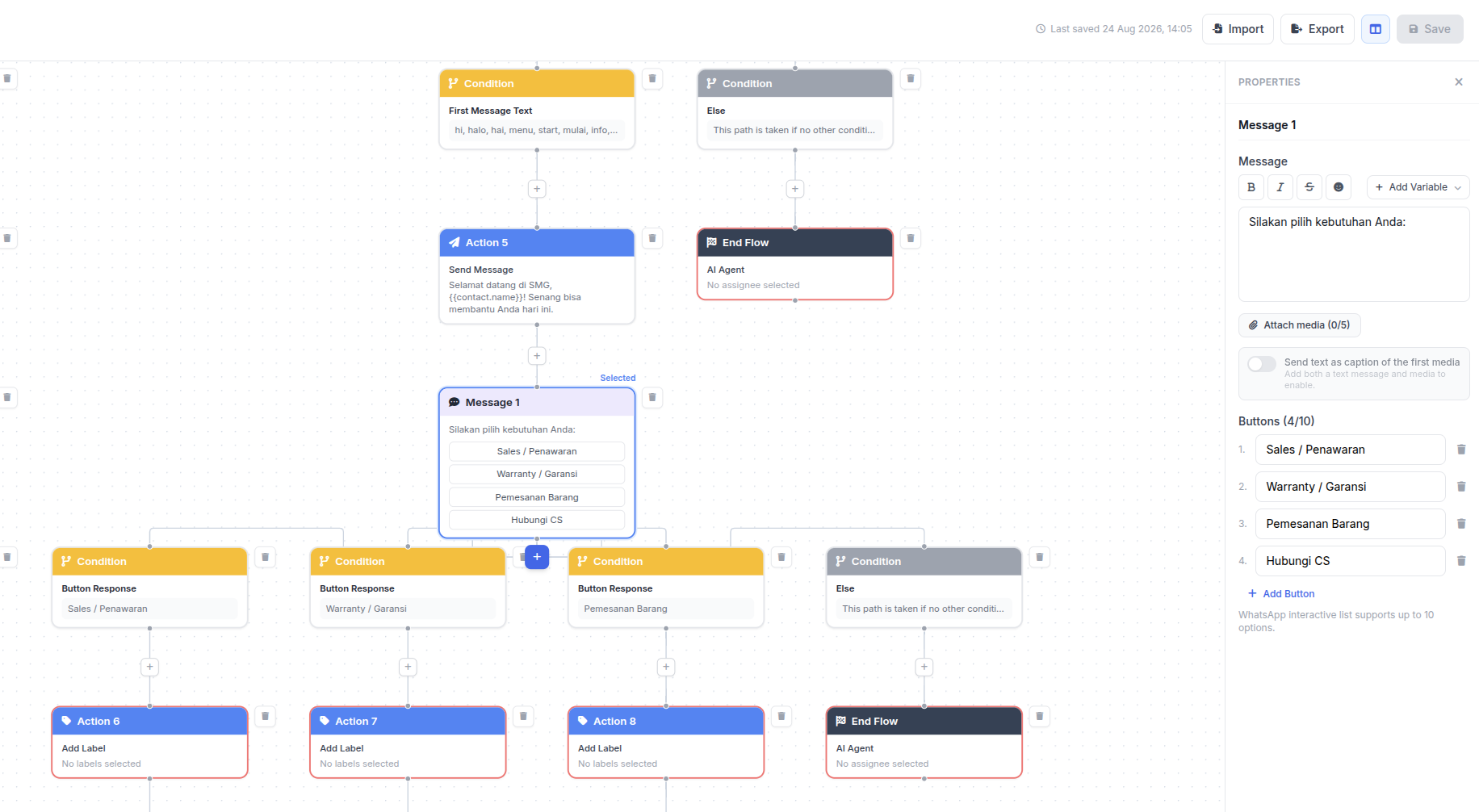
Numbers that are not on the official API cannot send buttons. In ChatMo, the same flow on an unofficial WhatsApp channel is automatically shown as a numbered menu, and customers reply with a number.
Measuring your interactive messages
Once a flow is live, review these every week:
If an option is rarely tapped, replace or remove it. If many customers pick "Something Else", read those chats and add an option for the topics that keep coming up.
Common mistakes
Trying to start a conversation with buttons. Outside the 24-hour window, interactive messages fail. Use a template.
Button text that is too long. Labels over 20 characters are rejected. Prepare short versions from the start.
Menus that go too deep. Three levels of choices is enough. Beyond that, customers would rather type.
Ignoring typed replies. Some customers will type even when buttons are there. Make sure your flow or AI agent can still understand text.
Not checking the phone view. A list menu with long descriptions can look cramped on a small screen. Send a test to your own number before going live.
Interactive messages and AI agents
Buttons and AI do not replace each other. Buttons work best for fixed choices, such as a branch or a category. An AI agent works best for open questions, such as "My skin is oily, which product should I use?" A combination that often works: buttons at the start to sort the need, an AI agent answering the details based on the choice, and an agent taking over when the customer is ready to buy or has a complaint.
If you are not on the WhatsApp Business API yet, start with What is the WhatsApp Business API to understand the requirements and sign-up steps.
Summary
Use reply buttons for 2 to 3 options, list menus for 4 to 10 options, and link buttons to send people to a specific page.
Within 24 hours, send interactive messages freely; outside that window, use templates with buttons.
Keep buttons short and clear, and always offer a path to a person.
Connect each choice to a label, the next step or the right team so the data is actually useful.
Frequently asked questions
What is a WhatsApp interactive message?
An interactive message is a WhatsApp Business API message with buttons or a list of options, so the customer taps an answer instead of typing. Examples are reply buttons, list menus and link buttons.
How many buttons can a WhatsApp interactive message have?
A reply button message holds up to 3 buttons. If you need more options, use a list menu with up to 10 rows.
Can interactive messages be used for broadcasts?
To start a conversation or send a broadcast you must use a template approved by Meta. Templates can include quick reply buttons or link buttons.
Can the WhatsApp Business app send buttons?
No. The WhatsApp Business app offers text quick replies, a catalog and labels. Buttons and lists require the WhatsApp Business API.
Do interactive messages cost money?
Interactive messages sent within the 24-hour service window are part of a service conversation. Charges follow Meta's current pricing rules for your number.
About the author
Antonio Kurniawan
Product & Customer Success
The ChatMo product and customer success team helps Indonesian businesses run WhatsApp, Instagram and webchat conversations with AI agents and shared inboxes.