24 WhatsApp Business Message Template Examples and How to Get Them Approved
WhatsApp templates are required when a business messages a customer first or replies after 24 hours. Learn the anatomy of a template, why templates get rejected, and 24 ready-to-use examples for online stores, clinics, courses and services.

Antonio Kurniawan
Product & Customer Success
On this page
- When do you have to use a template?
- Anatomy of a WhatsApp template
- The three template categories
- Why do templates get rejected?
- Before and after: rewriting rejected templates
- 24 ready-to-use template examples
- How to create and send templates in ChatMo
- Best practices for effective templates
- A checklist before you press submit
- Conclusion
Key takeaways
- Templates are required when a business starts a conversation or replies more than 24 hours after the customer's last message.
- Key limits: a 60-character text header, a 1,024-character body, a 60-character footer and up to 10 buttons.
- There are three categories: Marketing, Utility and Authentication; promotions submitted as Utility are usually rejected or recategorized.
- The most common rejection causes: wrong category, variables without context, duplicates and anonymous link shorteners.
- The most effective templates are short, have one purpose, greet by name and use buttons.
A WhatsApp Business message template is a message format approved by Meta that you must use when your business contacts a customer first, or replies more than 24 hours after the customer's last message. A template has an optional header, a body of up to 1,024 characters, a footer of up to 60 characters and up to 10 buttons. To get approved quickly, pick the right category (Marketing, Utility or Authentication), give an example for every variable, and avoid misleading or overly promotional wording.
In this article you will find the anatomy of a template, the rules that most often get templates rejected, and 24 ready-to-use examples for online stores, clinics, education and service businesses that you can adapt right away.
When do you have to use a template?
The WhatsApp Business API separates two situations. While a customer has just messaged you (the 24-hour service window), you can reply freely with any text, image or document. Outside that window, the only way to start a conversation is an approved template. Situations that need a template:
Sending an order confirmation or tracking number days after the customer last chatted.
Reminding someone of an appointment tomorrow morning.
Sending a login OTP code.
Broadcasting a promotion to past buyers.
Templates are also the basis of message pricing, because rates follow the category. Read WhatsApp API per-message pricing for the rates per category.
Anatomy of a WhatsApp template
Variables are written as {{1}}, {{2}} and so on. When you submit a template, Meta asks for a sample value for each variable, such as "Rina" for a name and "INV-20391" for an order number. These samples help the reviewer understand the context.
The three template categories
Marketing: promotions, discounts, product launches, win-back messages, holiday greetings with an offer. The most expensive category.
Utility: messages about an existing transaction or account: order confirmations, shipping updates, payment reminders, schedule changes.
Authentication: one-time codes for verification or login. The strictest format, usually with a copy-code button.
Careful: a Utility template with a promotion tucked in ("your order has shipped, and get 20% off your next purchase") is usually moved by Meta to Marketing. Keep transactional and promotional messages separate.
Why do templates get rejected?
The category does not match the content. A promotion submitted as Utility is the most common cause.
Variables without context. A template that is almost all variables, such as "Hi {{1}}, {{2}}", cannot be assessed.
Variables at the very start or end without surrounding words, or consecutive variables with no text in between.
Misleading or prohibited content, such as exaggerated profit claims, restricted products or requests for sensitive data.
Duplicates. A template whose body and footer match another template in your account can be flagged as a duplicate.
Anonymous link shorteners that hide the destination. Use your own domain.
Templates are usually approved within minutes, but it can take up to 24 hours. Submit templates for important campaigns at least a day ahead.
Before and after: rewriting rejected templates
These three examples come up often in new accounts. Notice the fix pattern: a clear purpose in the first sentence, variables with context, and a category that matches the content.
Small fixes like these are usually enough to pass on the next submission. If a template is rejected, read the reason in your dashboard, fix it and resubmit it as a new version with a different name.
The ideal template length
The body limit is 1,024 characters, but the templates people read most are usually just 2-4 sentences. Customers read notifications on the lock screen, so make sure the core message shows in the first 1-2 lines. Keep long details on the page behind the button, not in the template body.
24 ready-to-use template examples
Replace the numbers in curly braces with variables from your contact data. The category is shown after each example.
Online stores and e-commerce
"Hi {{1}}, thanks for shopping with Our Store. We have received order {{2}} for {{3}} and are processing it now. We will update you when it ships." (Utility)
"Order {{1}} has shipped with {{2}}. Tracking number: {{3}}. Tap the button below to track your parcel." [Button: Track parcel] (Utility)
"Hi {{1}}, we have not received payment for order {{2}} yet. Payment deadline: {{3}}. Need help? Just reply to this message." (Utility)
"Hi {{1}}, size {{2}} that you asked about is back in stock. Stock is limited, shall we hold one for you?" [Button: Yes, hold it] [Button: Stop restock alerts] (Marketing)
"Hi {{1}}, the items in your cart are still waiting. Complete your order before {{2}} and get free shipping." [Button: Continue to checkout] (Marketing)
"Thanks for receiving order {{1}}, {{2}}. How was your shopping experience? Reply with a number from 1 to 5." (Utility)
Clinics, salons and appointment businesses
"Hi {{1}}, your appointment with {{2}} is scheduled for {{3}} at {{4}}. Please arrive 10 minutes early." [Button: Confirm] [Button: Reschedule] (Utility)
"Reminder: your {{1}} treatment is tomorrow at {{2}} at our {{3}} branch. Reply CHANGE if you need to reschedule." (Utility)
"Hi {{1}}, it has been 3 months since your last treatment. Time for a routine check-up. Shall we find you a slot?" (Marketing)
"Your {{1}} results are ready. Download them with the button below using the access code sent separately." [Button: View results] (Utility)
Education and courses
"Hi {{1}}, we have received your registration for the {{2}} class. Classes start on {{3}}. We will send the schedule in our next message." (Utility)
"Reminder: invoice {{1}} for {{2}} is due on {{3}}." [Button: Pay now] (Utility)
"Today's {{1}} class has moved to room {{2}} at {{3}}. Sorry for the change." (Utility)
"Hi {{1}}, registration for the new {{2}} batch is open until {{3}}. Alumni get {{4}} off." (Marketing)
Services, B2B and property
"Hi {{1}}, thanks for contacting us. We have sent the quote for {{2}} to {{3}}. Anything you would like to discuss?" (Utility)
"We have received ticket {{1}} and team {{2}} is working on it. Estimated resolution: {{3}}." (Utility)
"Ticket {{1}} has been resolved. If the problem comes back, reply within 3 days and we will reopen it." (Utility)
"Hi {{1}}, unit {{2}} that you asked about is still available, and there is a viewing slot this Saturday. Shall we book you in?" (Marketing)
Accounts and security
"{{1}} is your verification code. For your security, do not share this code with anyone." [Button: Copy code] (Authentication)
"There was a new login to your account from {{1}} on {{2}}. If this was not you, change your password now." (Utility)
"The password for account {{1}} was changed on {{2}}." (Utility)
Re-engagement and opt-in
"Hi {{1}}, thanks for joining. You will receive order updates and exclusive offers on WhatsApp. Reply STOP at any time to opt out." (Utility)
"Hi {{1}}, it has been a while. There is a new collection you might like, plus a {{2}} voucher for returning customers." [Button: See the collection] [Button: Stop promos] (Marketing)
"Happy birthday, {{1}}! Here is a small gift from us: a {{2}} voucher valid until {{3}}." (Marketing)
How to create and send templates in ChatMo
Open the WhatsApp templates menu on your WhatsApp Official channel and click to create a new template.
Name the template in lowercase with underscores, such as
order_confirmation_v1, then choose the category and language.Add the header, body, footer and buttons. Fill in a sample for each variable.
Submit for approval. The template status updates automatically once Meta finishes its review.
Use approved templates in Broadcasts, workflows, or directly from a conversation once the 24-hour window has closed.
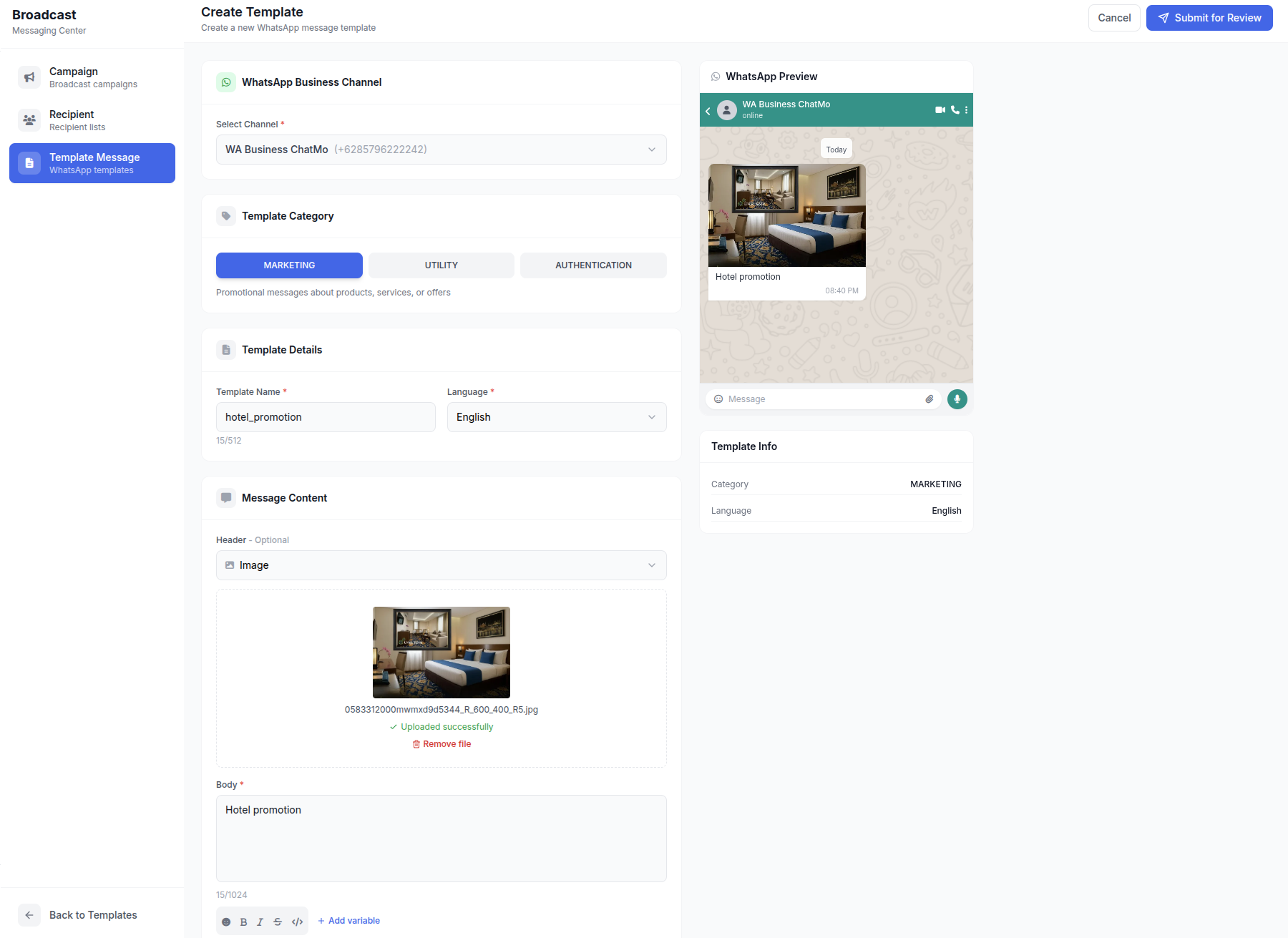
Tip: add a version number to template names (v1, v2). Approved templates cannot be freely edited, so a new version lets you test wording without losing the old template.
Best practices for effective templates
One purpose per template. A message that mixes a confirmation, a promotion and a survey confuses both customers and reviewers.
Greet by name and state the context in the first sentence.
Use buttons instead of asking customers to type a specific reply.
Offer a way out on marketing templates, such as a "Stop promos" button.
Measure results: read, click and reply rates per template. Templates with high block rates can be paused by Meta.
For sending templates to many contacts without hurting your number's quality, also read how to send WhatsApp broadcasts without getting banned.
A checklist before you press submit
Five minutes of checking before submitting a template can save a day of waiting for a resubmission. Use this list whenever your team creates a new template:
A descriptive, consistent name, such as
payment_reminder_v2, so it is easy to find once you have dozens of templates.The right language. If you serve Indonesian and international customers, create Indonesian and English versions under the same name.
Every variable has a sample that looks realistic. Meta uses these samples to judge whether the message makes sense.
The category matches the content. If it mentions a promotion, discount or a call to buy, choose Marketing.
Links use your own domain, not an anonymous link shortener, and the destination page is live.
A second person reads it. Ask a colleague to read it as a customer would: is it clear who is sending it and what to do next?
Keep this list in a team document and add every rejection reason you run into, so the same mistake does not happen twice.
Conclusion
WhatsApp templates are the entry point for every conversation a business starts. Know each part's limits, choose the category honestly, give clear variable samples and keep one purpose per template. With the 24 examples above, you can prepare a core template set in an afternoon and use it right away for notifications, reminders and promotions.
Want to manage templates, broadcasts and customer replies from one dashboard? Book a ChatMo demo.
Frequently asked questions
What is a WhatsApp Business message template?
A template is a Meta-approved message format used on the WhatsApp Business API when a business contacts a customer first or replies after the 24-hour service window has closed.
How long does WhatsApp template approval take?
Usually minutes, but it can take up to 24 hours. Submit templates for important campaigns at least a day ahead.
Why was my WhatsApp template rejected?
The most common causes are a category that does not match the content, variables without surrounding text, misleading content, duplicates of another template, or link shorteners that hide the destination.
How many buttons can a template have?
Up to 10 buttons, with a limit of 2 URL buttons, 1 phone button and 1 copy-code button. Button text can be up to 25 characters.
What is the difference between Marketing and Utility templates?
Marketing covers promotions and offers, while Utility relates to an existing transaction or account, such as order confirmations and payment reminders. They are priced differently.
About the author
Antonio Kurniawan
Product & Customer Success
The ChatMo product and customer success team helps Indonesian businesses run WhatsApp, Instagram and webchat conversations with AI agents and shared inboxes.