How to Add an AI Chatbot to Your Website Without Coding (and When You Still Need People)
An AI chatbot on your website can answer visitors 24 hours a day, collect leads and hand conversations to your team when needed. Learn the types of website chatbots, how to install one without code on WordPress, Shopify or plain HTML, how to prepare the AI's knowledge, and the rules for handing over to people.

Antonio Kurniawan
Product & Customer Success

On this page
- Types of website chatbots
- What can a website chatbot do?
- Step 1: define the chatbot's goal
- Step 2: prepare the AI's knowledge
- Step 3: set the widget's look and behaviour
- Step 4: install the widget code on your site
- Step 5: set rules for handing over to people
- An example website chatbot conversation
- Example: a cleaning service
- Writing the widget's opening message
- Privacy and transparency
- Measuring your website chatbot
- Common mistakes
- Step summary
Key takeaways
- Modern website chatbots combine AI that answers open questions with live chat so your team can take over at any time.
- No-code installation means pasting one snippet of widget code into your site, including on WordPress, Shopify and Wix.
- The quality of AI answers depends on the quality of the information you provide, not on the length of the prompt.
- Set clear handoff rules: requests for a person, complaints, payments and questions beyond the AI's knowledge.
- Measure the share of questions resolved without an agent, leads collected and response time after handoff.
Adding an AI chatbot to your website without coding is simpler than it sounds: choose a platform that offers a chat widget with an AI agent, fill in the business information the AI will answer from, set up the widget's look, then paste one snippet of widget code into your site. On WordPress, Shopify, Wix or a plain HTML site, it takes minutes. The parts that need real thought are two others: what information to give the AI, and when the AI should hand the conversation to a person.
This guide covers the types of website chatbots, installation steps per platform, how to prepare the AI's knowledge, example handoff rules, and the numbers to watch so the chatbot actually helps your business instead of decorating the corner of the screen.
Types of website chatbots
Not all chatbots are the same. Knowing the differences helps you choose what fits.
For most businesses, the hybrid model works best. AI handles repeated questions such as prices, opening hours, location and how to order, while agents focus on serious buyers and cases that need empathy.
If you are still weighing live chat against a WhatsApp button or a contact form, we compared them in website live chat for business.
What can a website chatbot do?
Answer routine questions at any time, including nights and weekends.
Recommend products or services based on what the visitor says they need.
Collect lead details such as a name, email or WhatsApp number for the sales team to follow up.
Point visitors to the right page, such as pricing, the catalog or a booking form.
Hand the conversation to an agent when a visitor is ready to buy, complains or asks something complex.
Lighten the team's load, so agents stop answering the same questions over and over.
Step 1: define the chatbot's goal
Before installing anything, pick one or two main goals. Different goals lead to different settings:
Online store: answer product and shipping questions and nudge visitors to complete their purchase.
Service business: gather prospects' needs and book consultations.
Software or apps: answer feature questions and help new users get started.
Clinics or education: share services, schedules and fees, then guide people to registration.
A clear goal makes it easier to write the AI's information and decide when a conversation counts as a success.
Step 2: prepare the AI's knowledge
This is the most important step and the most often underestimated. The AI can only answer as well as the information you give it. Prepare a document that covers:
Business profile: what you sell, who it is for and how you differ from competitors.
Products or services with prices, variants and availability.
Policies: shipping, payment, returns, warranty and cancellations.
Opening hours and location, including holidays.
Frequently asked questions with the answers your team usually gives.
Boundaries: what the AI must not promise, such as special discounts or exact delivery dates.
Write in plain language with specific facts. "Delivery in Greater Jakarta takes 1 to 2 working days, outside Java 3 to 7 working days" is far more useful than "Fast delivery across Indonesia".
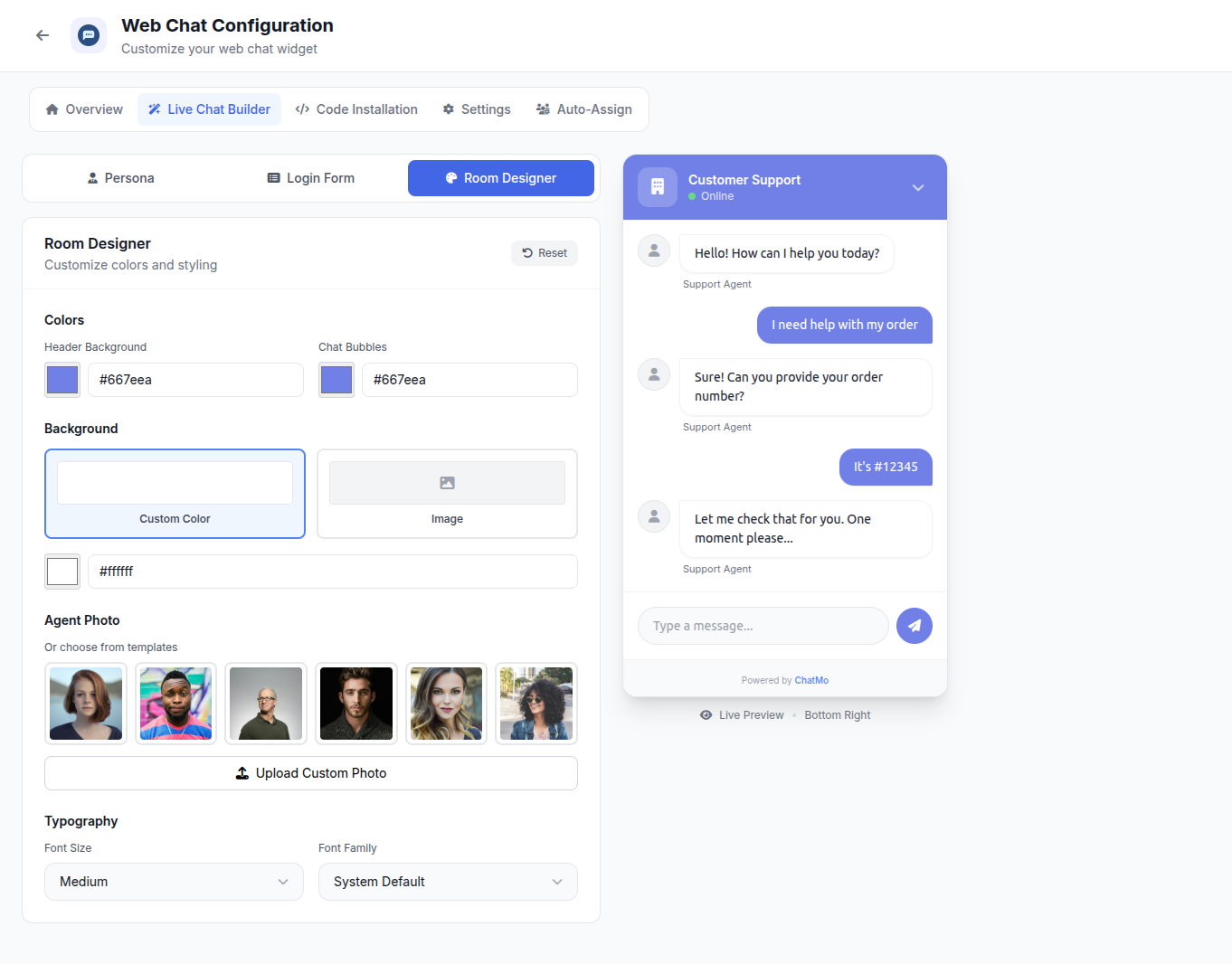
Step 3: set the widget's look and behaviour
The chat widget is your business's face on the website. Common settings include:
Widget position, bottom right or bottom left, placed so it does not cover important buttons.
Chat window size, comfortable to read on desktop and mobile.
Agent name and photo shown to visitors.
Auto-open, whether the chat window opens as soon as the page loads. Use it carefully, because it can feel intrusive.
A pre-chat form, for example asking for a name and an email or WhatsApp number before the conversation starts.
In ChatMo, all of these settings are on the webchat widget page, and website conversations land in the same inbox as WhatsApp, Instagram, Facebook and Telegram.
Step 4: install the widget code on your site
Once the widget is set up, the platform gives you a JavaScript snippet. It usually goes right before the closing </body> tag on every page. The method differs by platform:
WordPress
Use a plugin that inserts code into the header or footer, and paste the widget code into the footer section. You can also add it through the theme editor, but a plugin is safer because the code survives theme updates.
Shopify
Go to Online Store, choose Themes, click Edit code and open theme.liquid. Paste the widget code just before </body> and save.
Wix and Squarespace
Both platforms offer a setting for adding custom code to every page of the site. Choose the end of the body as the placement and apply it to all pages.
HTML sites or frameworks
Paste the code into the main template used by every page. If the site uses Google Tag Manager, you can also install the widget as a custom HTML tag.
After installing, open the site on mobile and desktop, send a test message and check that it appears in the inbox.

Step 5: set rules for handing over to people
A chatbot that never hands over to a person frustrates visitors. Define clear handoff conditions:
When a handoff happens, make sure the visitor knows, for example "I'm passing you to our team. They usually reply within a few minutes during working hours." Outside working hours, ask for a WhatsApp number or email so the team can follow up the next day.
In ChatMo, an AI agent can run on the webchat channel with rules for when it stops and hands over. Handed-over chats go automatically to an agent or team based on your assignment settings.
An example website chatbot conversation
Visitor: Hi, do you have an online graphic design course?
Chatbot: Hi! Yes, our online graphic design class runs for 8 weeks, twice a week in the evening. It costs Rp1,750,000 per batch, including class recordings. Have you used design software before?
Visitor: Never.
Chatbot: Perfect, the class starts from the basics. The next batch begins on November 3 and only a few seats are left. Shall I connect you with our admissions team to hold a seat? Could I have your name and WhatsApp number?
Notice that the chatbot gives a specific answer, asks one question to understand the need, then offers the next step and asks for contact details with a clear reason.
Example: a cleaning service
A cleaning service in Jakarta got plenty of website visits from Google ads, but most visitors left without getting in touch. The contact form on the services page was rarely filled in, and WhatsApp questions were only answered when an agent had time.
They installed a chat widget with an AI agent that knew the packages, prices per room size, service areas and available slots. The pre-chat form only asked for a name and a WhatsApp number. The AI answers questions such as "How much is a deep clean for a 2-bedroom apartment?" with a price range and asks when the visitor would like the service. Once the visitor names a date, the chat goes to an agent to confirm the booking and payment.
Within a month, website conversations far outnumbered the forms they used to receive, because asking in chat feels lighter than filling in a form. Agents also stopped answering basic price questions and spent their time confirming bookings instead.
Writing the widget's opening message
The first message visitors see decides whether they type anything. Avoid generic greetings such as "How can we help?" Name concrete things you can help with instead, for example "Hi! Want to check package prices, free slots this week or our service areas? Just ask here." A message like this gives example questions and shows the chatbot can actually answer them.
Privacy and transparency
Tell visitors they are talking to an AI assistant. Honesty builds trust, and visitors are more forgiving when an answer misses.
Ask only for what you need. A name and one contact method are enough for follow-up.
Never ask for sensitive data such as card numbers, PINs or passwords in chat.
Publish a privacy policy on your site and explain how chat data is used.
Measuring your website chatbot
Every two weeks, read a few conversations that were handed to agents. If the AI keeps failing the same questions, add that information to its knowledge.
Common mistakes
Installing a chatbot without enough knowledge. The AI answers too vaguely or hands almost every chat to agents.
Auto-opening the widget on every page. Visitors who are reading feel interrupted. Consider auto-open only on certain pages, or let visitors open it themselves.
Nobody watching handoffs. A visitor passed to an agent and then ignored is more disappointed than one who never chatted.
A long pre-chat form. Five required fields before asking a question makes visitors give up.
Forgetting to update information. Old prices and offers still quoted by the AI lead to complaints.
Step summary
Define the chatbot's main goal.
Prepare complete, specific business knowledge for the AI.
Set up the widget: position, size, agent name and pre-chat form.
Paste the widget code into your site and test on mobile and desktop.
Set handoff rules for agents and review results regularly.
An AI chatbot works best as a friendly front door that never closes, with a human team ready to step in when a conversation needs a personal touch. For a deeper look at how AI agents work, read WhatsApp AI chatbot for customer service.
Frequently asked questions
What is a website chatbot?
A website chatbot is a chat window on your site that replies to visitors automatically. Modern chatbots use AI to understand open questions and can hand the conversation to a human agent.
How do I add a chatbot to my website without coding?
Choose a platform that offers a chat widget with AI, fill in your business information for the AI, set the widget's look, then paste the widget code into your site. On WordPress and Shopify, the code can go in a header and footer plugin or the theme editor.
Can an AI chatbot replace customer service?
Not completely. AI is effective for routine questions and after-hours coverage, but complaints, negotiations and complex cases are still best handled by people.
Does a website chatbot slow down my site?
A well-built chat widget loads asynchronously so it does not block the page. Still, check your site speed after installing it.
What information should a chatbot ask visitors for?
Ask only for what you need, such as a name and a WhatsApp number or email for follow-up. Never ask for sensitive data such as card numbers or passwords in chat.
About the author
Antonio Kurniawan
Product & Customer Success
The ChatMo product and customer success team helps Indonesian businesses run WhatsApp, Instagram and webchat conversations with AI agents and shared inboxes.