How to Migrate Your WhatsApp Business Number to the API Without Changing Numbers
The number your customers already know does not have to change when you move to the WhatsApp Business API. Learn the requirements, the migration steps, what happens to your chat history, how to prepare your team and how to keep customers from noticing the move.

Antonio Kurniawan
Product & Customer Success
On this page
- Why businesses move from the app to the API
- When is the right time to migrate?
- Requirements for migrating to the WhatsApp Business API
- What happens to your chat history?
- Migration steps
- Preparing your team before and after migration
- Should you tell customers?
- After migration: what changes
- Example: a beauty clinic with three branches
- Common technical questions
- Time and budget to plan for
- Migration checklist
- Common mistakes
- Summary
Key takeaways
- A number active on the WhatsApp Business app can move to the WhatsApp Business API without changing the number.
- After migration, the number can no longer be used in the regular app, and old chat history does not move to the API platform.
- Prepare a Meta Business Portfolio, access to the number to receive a verification code, and an official WhatsApp Business API provider.
- Back up important chats and save customer contacts before you start.
- Migrate during a quiet period and prepare templates and quick replies so the team can work straight away.
Migrating a WhatsApp Business number to the API means moving the number you already use in the WhatsApp Business app to the WhatsApp Business API, without changing numbers. Customers keep messaging the same number, but behind the scenes you get a shared inbox for many agents, automation, approved templates and integrations with other systems. Two things must be clear before you start: after migration the number can no longer be used in the regular WhatsApp app, and old chat history does not move over. So back up important chats and prepare your team before you register.
This guide covers when to migrate, what you need, the steps involved and a checklist so customers do not feel any disruption.
Why businesses move from the app to the API
The WhatsApp Business app is designed for small businesses served by one or two people. As a business grows, its limits start to show:
Limited agents. The app runs on a few linked devices, with no chat assignment and no per-agent login.
Limited broadcasts. Broadcast lists only reach contacts who have saved your number.
Simple automation. Only greeting messages, away messages and quick replies.
No reporting. You cannot see team response times or how many chats became sales.
The WhatsApp Business API addresses all of that: many agents with their own accounts, broadcasts with approved templates, AI agents and automated flows, and performance reports. The full comparison is in WhatsApp Business app vs API.
When is the right time to migrate?
Signs your business is ready:
More than three people reply to chats every day.
Chats are often missed or answered twice.
You want to send official broadcasts to thousands of customers.
You run Click to WhatsApp ads and want to track results.
You want AI to answer outside working hours.
With a single agent and a few dozen chats a day, the regular app may still be enough. Migration pays off most once volume and the number of people involved have grown.
Requirements for migrating to the WhatsApp Business API
Business verification is not always required at the start, but it is needed to raise messaging limits and for some features such as applying for the blue check. See how to get the WhatsApp Business verified badge.
What happens to your chat history?
This is the most common question, and the answer must be clear: chat history in the app is not transferred to the API platform. Once the number is registered on the API, new conversations start from zero in the platform inbox.
What you can do before migrating:
Export important chats, such as conversations with key customers or unfinished orders, using the app's chat export feature.
Record the status of ongoing orders so the team can follow up after the move.
Save your customer contact list with key details such as names and cities. These contacts can be imported into the platform as customer data.
Close active conversations as far as possible before migration day.
Migration steps
The exact steps differ slightly between providers, but the general flow is:
Choose a provider and a time. Pick the day and hour, ideally when chats are quietest, such as Sunday morning.
Release the number from the app. The number must be removed from the WhatsApp Business app before it is registered on the API. Your provider will tell you when to do this.
Connect to your Meta account. Sign in with a Facebook account that has access to your Business Portfolio, then create or select a WhatsApp Business account.
Register and verify the number. Enter the number, choose to receive the code by SMS or call, then enter the verification code.
Set up the business profile. Fill in the display name, profile photo, description, address and website.
Submit message templates. Prepare templates for order confirmations, reminders and follow-ups, because templates are needed to contact customers outside the 24-hour window.
Test sending and receiving. Message the business number from a personal number and check that it arrives in the platform inbox.

Preparing your team before and after migration
Technology is only half the job. The team needs to know what changes:
Create an account for every agent on the platform, with the right role.
Set up automatic chat assignment so new chats get an owner right away.
Move quick replies from the app to the platform, including ones with images or documents.
Agree on labels for conversation status and question types.
Train the team for 30 minutes before migration day: replying, reassigning chats and using templates.
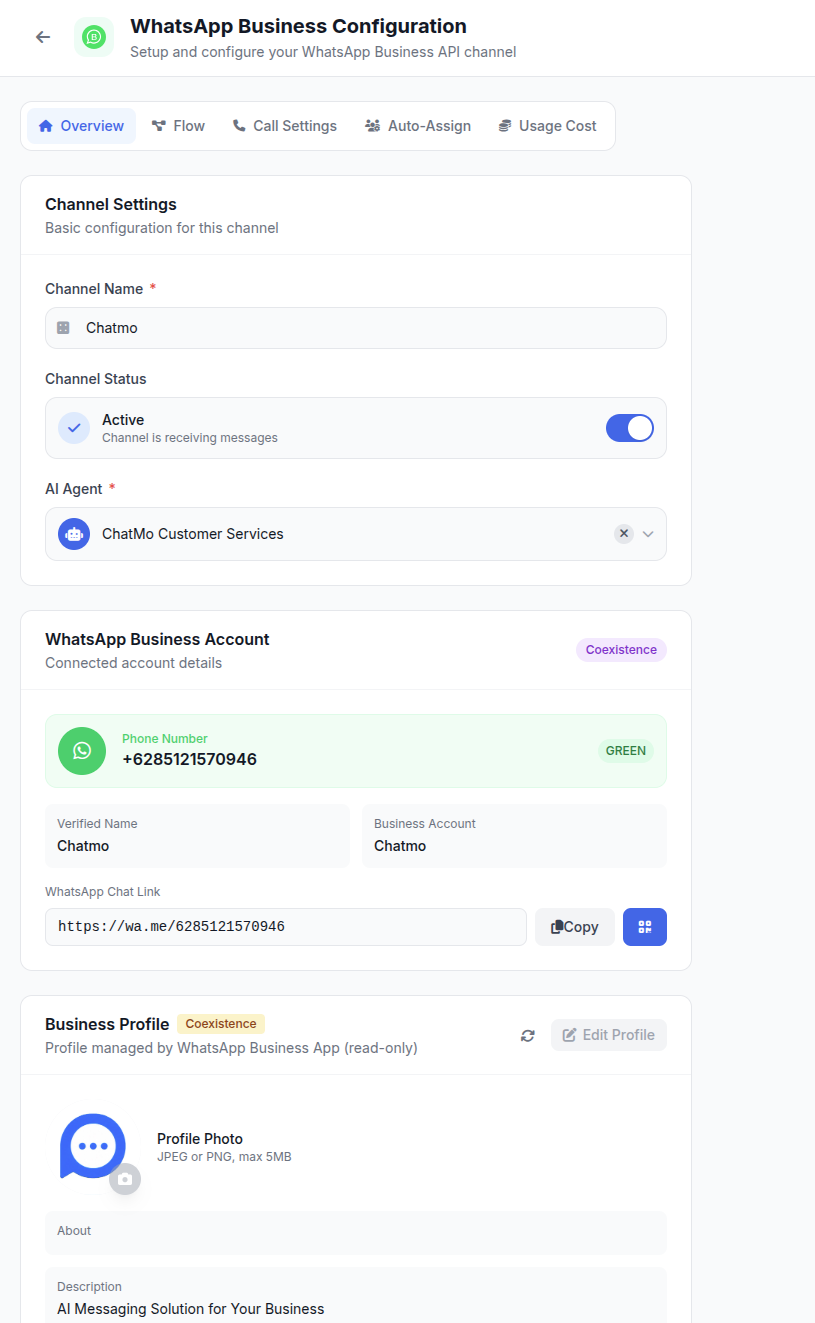
In ChatMo, once the number is connected, you can immediately set per-channel auto-assign, quick replies with attachments, labels and an AI agent for after-hours coverage.
Should you tell customers?
Because the number stays the same, most customers will not notice the change. Still, a few things are worth communicating:
If there will be a service gap during migration, announce it on WhatsApp Status and social media the day before.
Customers with ongoing orders should be contacted again after migration, because their old chat history is not visible on the new platform.
Keep the same name and profile photo so customers recognise your business.
After migration: what changes
On cost, Meta charges for certain template messages, with exceptions and free allowances that can change. The details are in WhatsApp API per-message pricing.
Example: a beauty clinic with three branches
A beauty clinic with three branches in Jakarta used one WhatsApp Business app number open on one phone and two laptops. Each branch had its own agent, but they all replied from the same account. Patients sometimes received schedules from the wrong branch, and the owner had no idea which branch was slowest to reply.
They decided to migrate to the WhatsApp Business API on a Sunday morning, when chats were quietest. A week earlier, the team exported conversations with patients who had ongoing treatment plans, recorded 140 upcoming appointments and prepared three templates: appointment confirmation, a reminder the day before and a post-treatment follow-up. On the platform, they created three teams by branch, and new chats were routed through a branch choice in the welcome message.
Number registration was finished before noon. On Monday morning, agents started working in the shared inbox with their own accounts. Patients with appointments that week received the reminder template, which reopened their conversations on the new platform. Within two weeks, the owner could see response times per branch for the first time.
Common technical questions
Can I go back to the app after migrating?
Yes, by removing the number from the WhatsApp Business API and registering it in the app again. But conversation history on the API platform does not return to the app, so think this decision through.
Can I use a landline or office number?
Yes, as long as the number can receive a call for the verification code and is not registered on another WhatsApp account.
What about a number already used in Click to WhatsApp ads?
The ads keep pointing to the same number. After migration, chats from ads arrive on the API platform. Make sure the team is ready to reply as soon as the number is live so ad spend is not wasted.
Time and budget to plan for
The migration itself does not take long, but the preparation is often underestimated. Allow about a week to tidy contacts, export important chats, prepare templates and train the team. Template approval is usually quick, but rejected templates need fixing and resubmitting, so do not wait until migration day to submit them.
On cost, budget for two components: the platform or provider fee, and Meta's message charges for certain template categories. Replies within the 24-hour service window for customer-initiated conversations are generally not charged, so businesses where most chats come from customers are rarely surprised by the bill. Businesses that send many marketing broadcasts should calculate more carefully before starting.
Migration checklist
Export important chats and record ongoing orders.
Save and tidy your customer contact list.
Confirm access to the Business Portfolio and the phone that receives the code.
Prepare the display name, photo and profile description.
Prepare at least three core templates.
Create agent accounts, labels and quick replies on the platform.
Schedule the migration in a quiet period and announce any service gap.
Test sending and receiving as soon as the number is live.
Common mistakes
Migrating during busy hours. Chats that arrive during the process can be missed.
Not backing up chats. Important order details disappear from the team's view.
Forgetting to submit templates. The team cannot reach customers outside 24 hours on day one.
Changing the display name drastically. Customers get confused and think the number changed hands.
Not training the team. The new platform feels complicated and agents fall back into old habits.
Summary
The same number can move to the WhatsApp Business API, so customers are not disrupted.
Chat history does not move, so back up what matters.
Prepare your Meta account, an official provider, the business profile and templates before migration day.
Set up the team, labels and chat assignment so service is better organised from day one.
Frequently asked questions
Can a WhatsApp Business number be moved to the API?
Yes. A number active on the WhatsApp Business app can be registered on the WhatsApp Business API through an official provider. The same number stays in use, so customers do not need to save a new one.
Does chat history move when migrating to the API?
No. Chat history in the app is not transferred to the API platform. Back up important chats and record customer details before migrating.
How long does migration to the WhatsApp Business API take?
If your Meta account and documents are ready, registering the number usually takes a few hours. Business verification can take longer depending on your documents.
Can I still use the number in the WhatsApp app after migrating?
A number registered on the WhatsApp Business API cannot be used at the same time in the regular WhatsApp app. All conversations are handled from the API platform.
What should I prepare before migrating?
Prepare access to your Meta Business Portfolio, a phone to receive the verification code, backups of important chats, a list of customer contacts, the message templates you will submit, and a migration slot during quiet hours.
About the author
Antonio Kurniawan
Product & Customer Success
The ChatMo product and customer success team helps Indonesian businesses run WhatsApp, Instagram and webchat conversations with AI agents and shared inboxes.